
Invoice Approvals
Approving Vendor Invoices
Overview
As a Board Member, one of your core responsibilities is controlling your Association's cash by reviewing and approving vendor invoice payments. The Online Portal makes this process quick and convenient by providing access to invoice details, supporting documents, and invoice-related communication—all in one place.
When vendors submit invoices for completed work, the VirtualHOA.com accounting team reviews and enters them into the system. Once entered, invoices requiring Board approval are assigned to the full Board for approval.
This guide explains how to locate invoices, review the information provided, and confidently ✅ approve or 🚫 reject invoices.
Notifications
You'll know an invoice is awaiting your review when you receive:
📧Email Notification: Our system sends a summary of outstanding invoices awaiting approval every Tuesday and Friday, to all of your HOA's Board Members. We don't send a separate email for each invoice, in order to reduce the number of email notifications in your inbox.
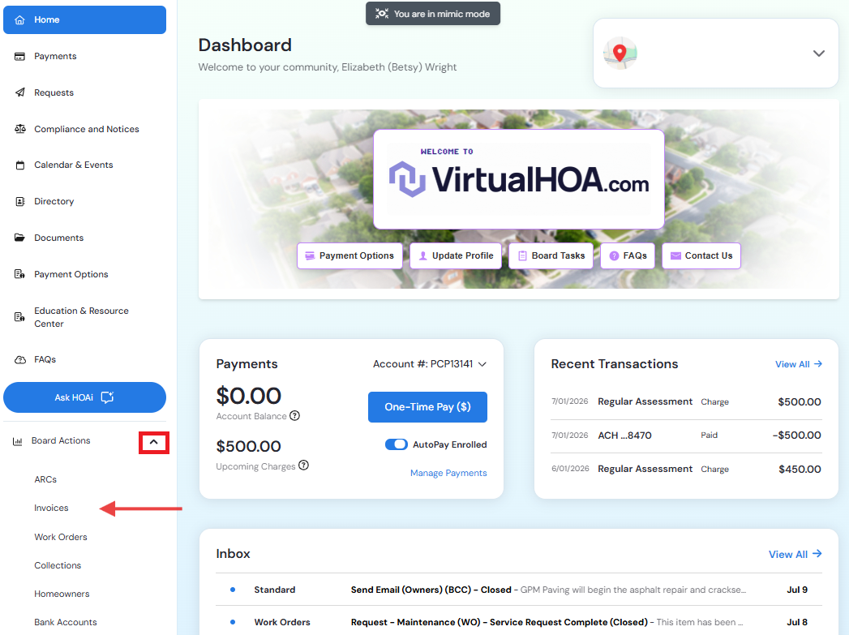
📲Portal Notification: A notification will appear under Board Actions > Invoices in the Online Portal (this will appear immediately upon invoice entry)
Step 1: Log Into the Online Portal
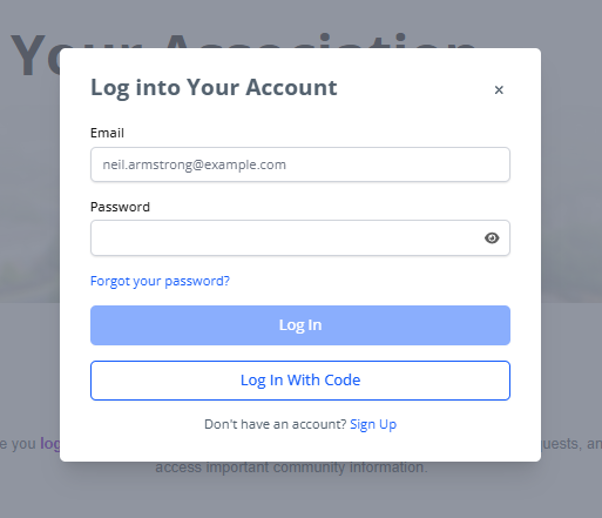
Navigate to your community's Online Portal at home.virtualhoa.com
Enter your email address and password.
Click Log In.
Step 2: Open Board Actions
From the dashboard, select Board Actions.
Click Invoices in the left-hand menu.
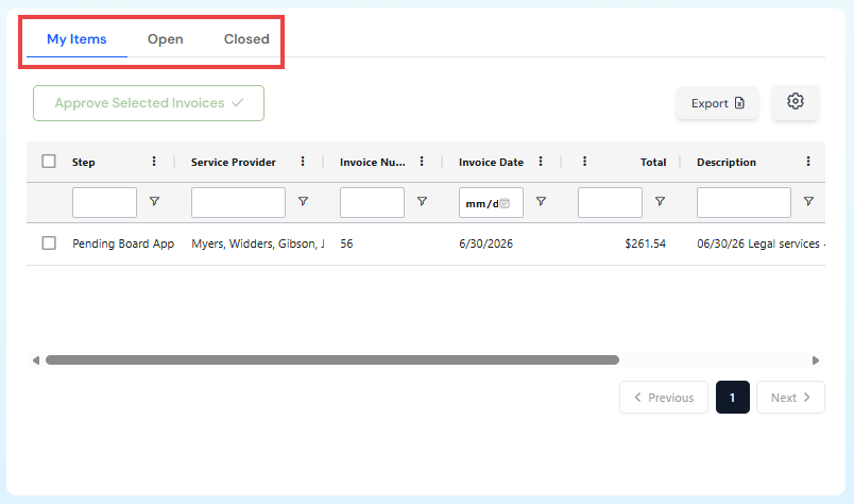
You'll see any invoices currently awaiting your review. There are three tabs:
My Items: Displays invoices currently assigned to you and awaiting your review.
Open Invoices: Displays invoices still in the approval process, including those awaiting an additional Board approval, if required.
Closed Invoices: Displays invoices that have completed the approval process for your reference.
Step 3: Open the Invoice
Locate the invoice you want to review.
Click View.
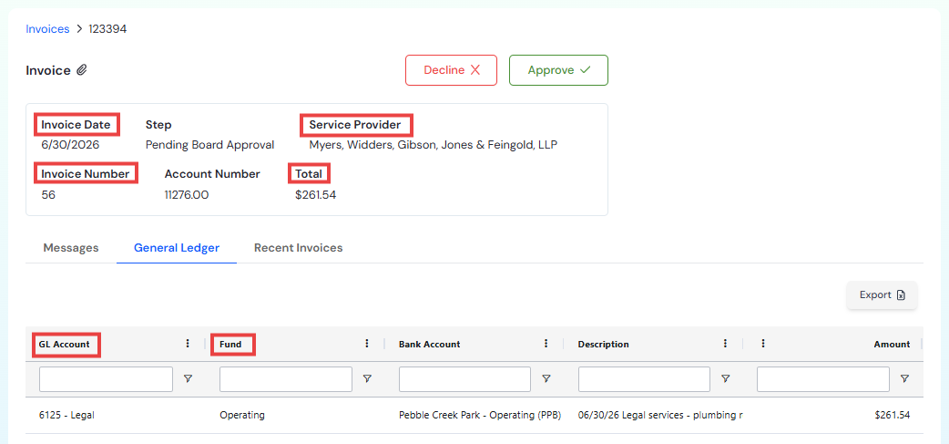
You'll be able to see important information, including:
Vendor name
Invoice number
Invoice date
Amount due
General Ledger (GL) account
Fund allocation (Operating or Reserve)
Step 4: Review the Invoice Information
Before making a decision, verify that:
The vendor is familiar and appropriate.
The invoice amount appears accurate.
The work or services listed match what was expected.
The expense has been charged to the correct account.
The correct fund is being used.
Operating Fund: Routine day-to-day expenses.
Reserve Fund: Major repairs, replacements, or long-term projects.
Step 5: Review the Attached Invoice
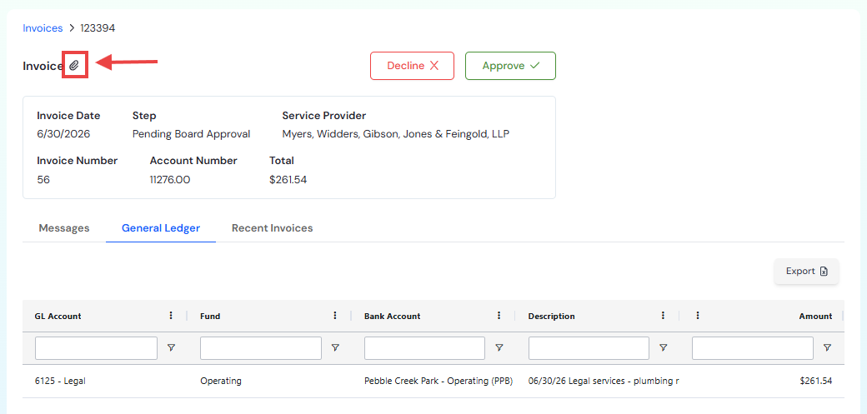
Click the paperclip icon.
Open the attached invoice (typically a PDF).
Review the invoice to ensure the charges and services match the information entered in the portal.
Step 6: Read Messages and Approval History
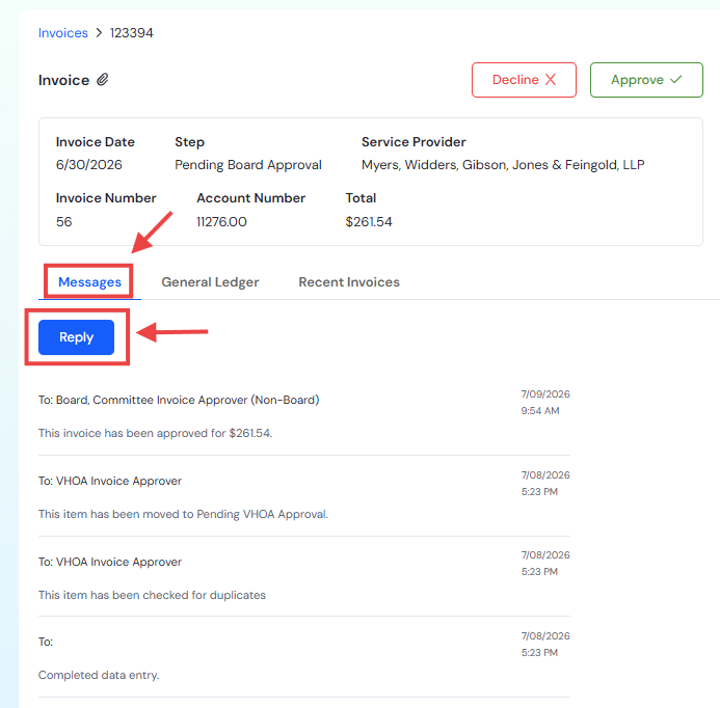
Scroll to the Messages section to review comments from:
Accounting staff
Other Board Members
This section also allows you to:
View the invoice's approval history.
See when the invoice was received.
Review previous approval or rejection actions.
Ask questions or comments related to the invoice.
Step 7: Approving or Rejecting an Invoice
🔎Invoice Approval Authority
To maintain strong financial controls, invoice approval permissions are assigned to authorized Board positions.
Who Approves: All Board members can see and act on outstanding approvals. That said, Boards usually designate a select officer responsible for logging in and approving invoices. Most invoices require one (1) Board Member action of approving or declining. Depending on your association's governing documents or approval thresholds, a second Board Member's approval may be required before payment is processed.
Updating Approvers: Because Board positions change over time, approval permissions do not update automatically. If Board roles change, please email info@virtualhoa.com so portal permissions can be updated and approval records remain accurate.
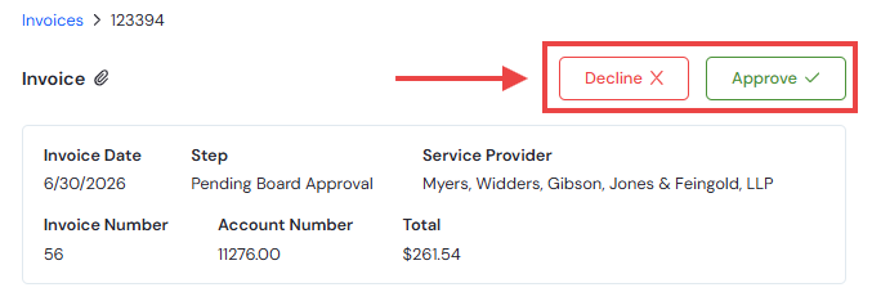
✅Approve the Invoice
Approve the invoice if:
The services were completed.
The amount is accurate.
The documentation is complete.
The expense is appropriate for the association.
You have no outstanding questions.
🧮 Note: Invoices are posted to the accounting General Ledger only upon approval.
🚫Reject the Invoice
Reject the invoice if:
The work was not completed.
The charges appear incorrect.
Additional documentation is needed.
The vendor or service requires further discussion.
You have concerns that must be resolved before payment.
📝Add a Comment
Comments are optional when approving an invoice but required when rejecting one.
If rejecting an invoice, clearly explain the reason so the Accounting Team and other Board Members understand what needs to be addressed before the invoice can be reconsidered.
Examples include:
Requesting additional documentation before approval.
Amount exceeds the approved budget.
Services appear incomplete.
Invoice requires Board discussion.
Comments become part of the invoice's permanent approval history and help keep everyone informed.
Auto-Approved Invoices
All invoices require Board approval, except for the limited exceptions outlined below. This policy strengthens oversight, improves checks and balances, and gives the Board greater control over safeguarding Association funds.
To keep association operations running smoothly and prevent service interruptions, certain expenses bypass the Board approval process. The below invoices will not appear in your online portal's My Items queue.
🏢 VirtualHOA.com Fees: management fees are automatically processed per our Agreement.
📬 Mailing/Postage Bills: Mailing & postage invoices are automatically processed. Note that your HOA can avoid these expenses when owners sign up for free email notifications instead of charged USPS mail. See this article on how owners can select free email delivery instead.
🏦 Tax Return Bills: Once the Board formally reviews and approves the association's annual tax return prepared by the CPA, the related tax payment due to the government is considered automatically authorized and will be processed ASAP.
Best Practices
To help keep your association's finances running smoothly:
Review pending invoices regularly.
Respond promptly so vendor payments are not delayed.
Ask questions if something doesn't look right.
Discuss large or unusual expenses with the Board when appropriate.
Keep all invoice information confidential.
Leave a comment whenever additional clarification is helpful. Comments are required when rejecting an invoice.
Need Help?
If you have a question about an invoice, add a message directly within the invoice in the Messages section. This keeps all communication associated with the invoice and creates a complete record of the discussion for future reference.
For general questions or assistance with invoice approvals, please email info@virtualhoa.com.
Thank you for taking the time to review invoices carefully. Your participation helps ensure your association's funds are managed responsibly, vendors are paid promptly, and financial decisions remain transparent for your community.